
Notion Search Gets an Upgrade: 5 Tips You Need to Know
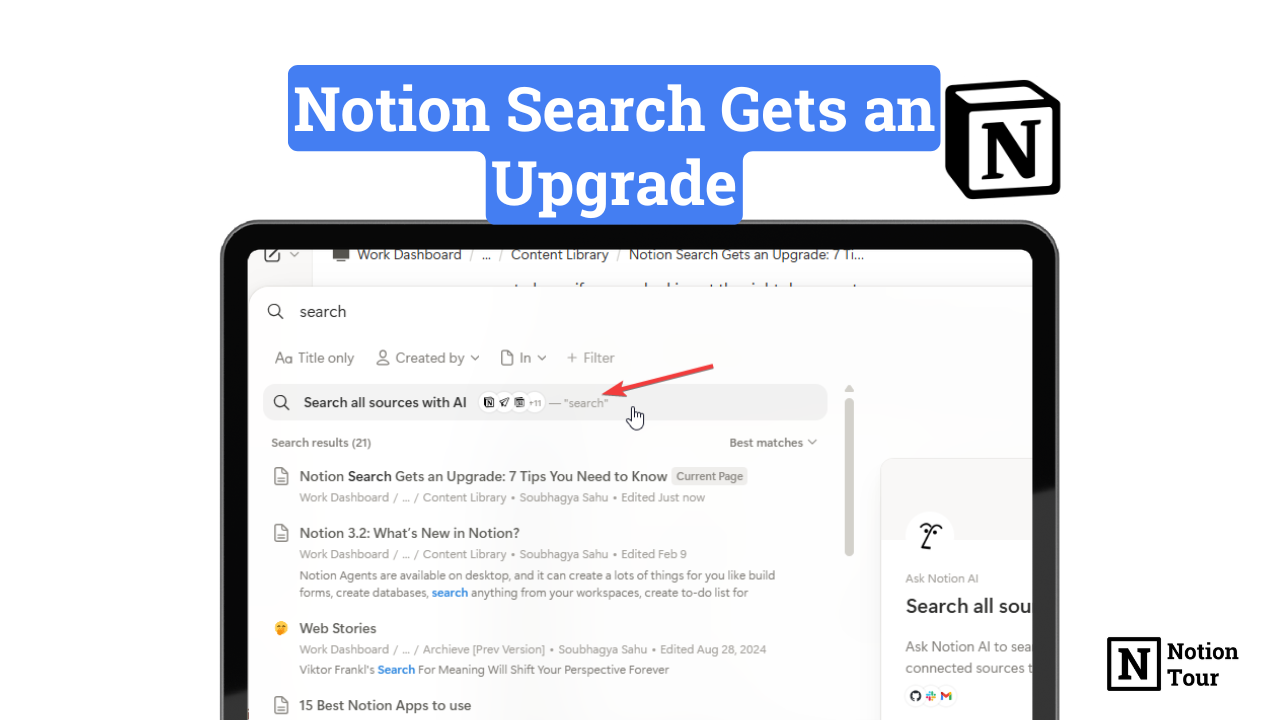
Notion is working on making the overhaul of the design fixed, and I think it’s working. They are continuously making improvements to the mess they created.
With the new notion of agentic shift, every other feature is placed randomly. Notion’s design team needs to be appriciated they are making Notion better again.
People like Cole Bemis, Design engineer at Notion, make just small improvements that are not needed or that a user barely notices, but these improvements are what make the app more special.
You can follow him X, to see such improvement.
Now the center of attention here is notion search! It was good, now it’s far better, customized, and very useful. In this article, we will see such improvements here.
Notion Search: Old vs New
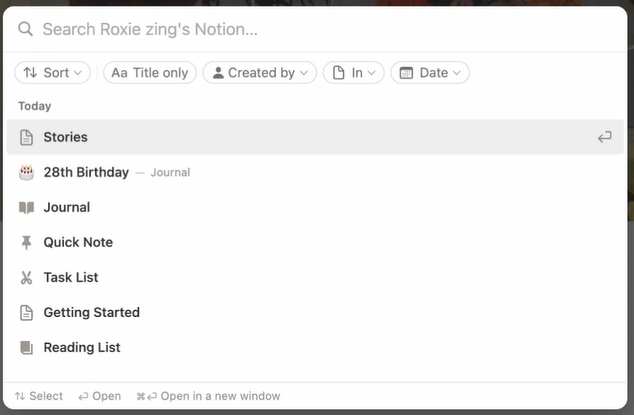
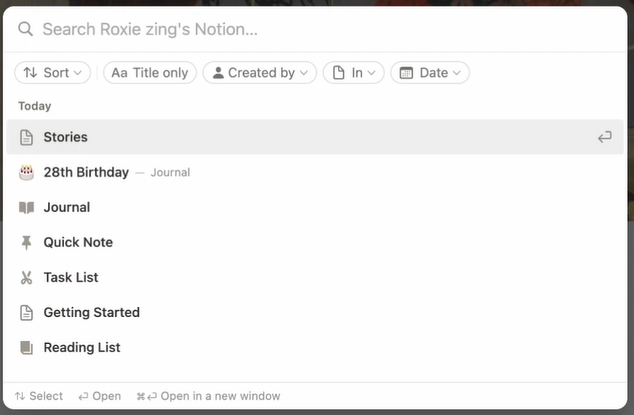
The old search bar worked just fine; it has search filters, a big modal for searching anything, and filters like sorting, title only, the specific document to search, date, and created by filters—which is fine for an app like Notion to search anything from a vast library of docs.
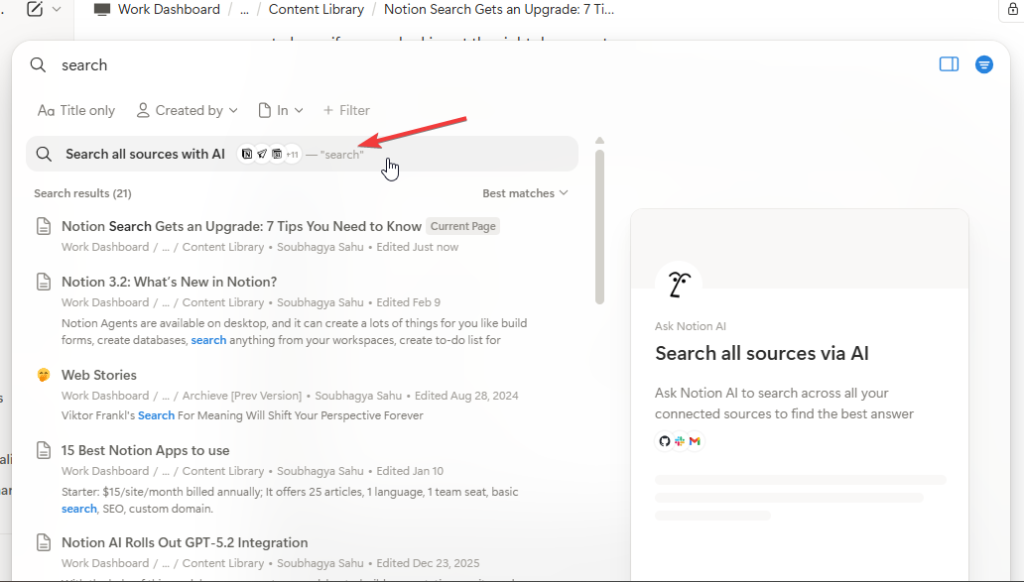
Now with the new search option: the modal is expanded with a preview column, the design is improved, and the search filters have also.
Let’s look at some of the underlying features of improvements made to notion search.
1. Notion Search Preview option
The search option now lets you preview the docs to see what’s inside directly.
In the preview option, you can directly see what’s inside the docs—you dont have to click on the doc to know if you are looking at the right doc or not.
It shows the texts and the database inside it are in skeleton loading. The preview is fast also. i didnt see any lag or delay on content loading—you just hover on the docs, and the preview is ready.
2. Search with AI
Notion AI is expanding on the app a lot; it’s integrating where it can. You can now search the doc you want on the search option, and if you don’t find anything, then you can search with AI. You can click on the search all sources with AI option, and Notion AI will search the doc for you.
3. Search filter options
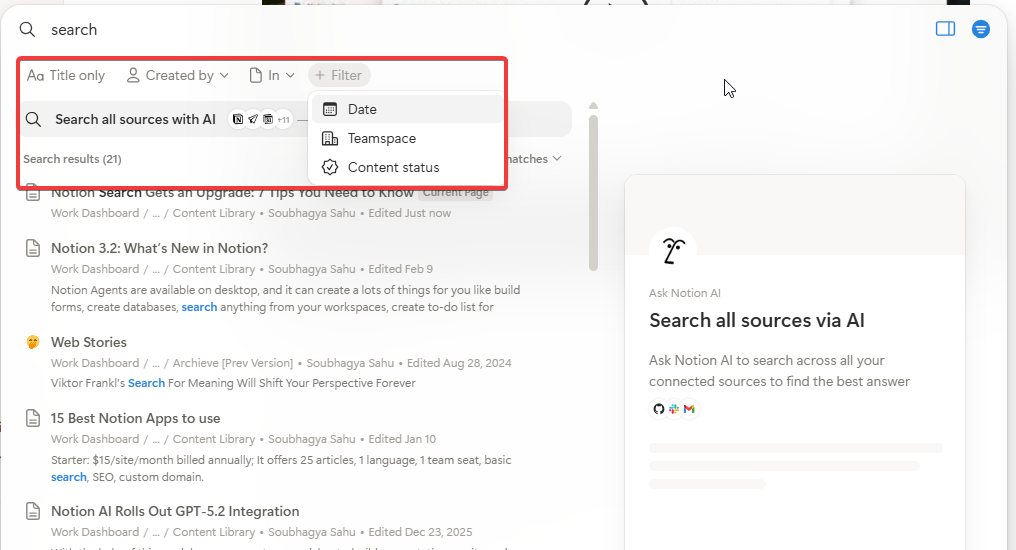
The search option has many search filters that you can use to filter the way you want. The search filters are:
- Title only: use to search only with titles
- Created by: use it to search for the person created, then the docs in the workspace.
- In: You can search on the specific database or pages.
- Date: Search with date in mind
- Teamspace: search based on the team space.
4. Hide preview and filter option
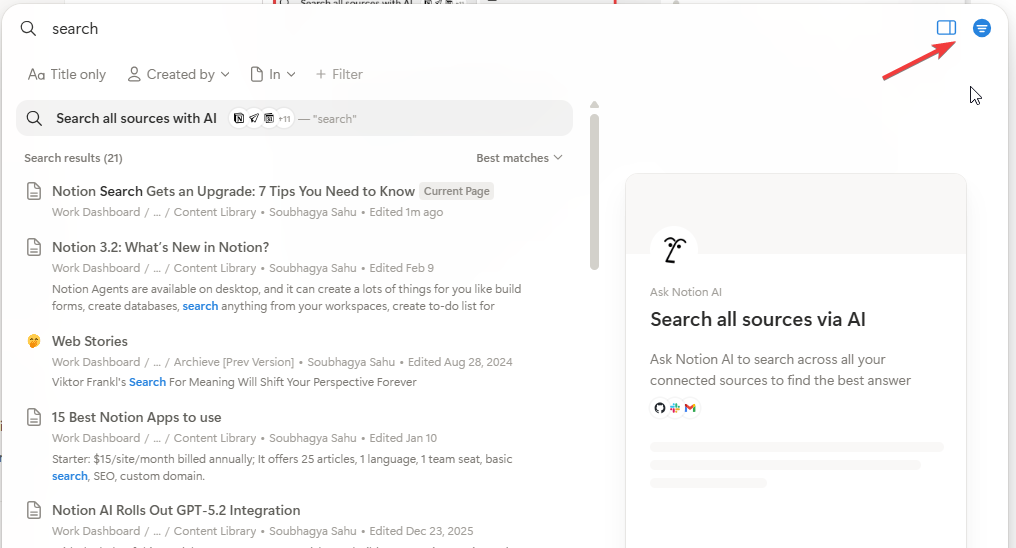
The new search option adds two new options, which make the new notion search attractive to use. The preview option helps you show or hide the doc’s preview.
The filter option also helps you show or hide the filters in the notion search. You can customize the notion search look according to your needs.
5. Preview the copy link and open the page
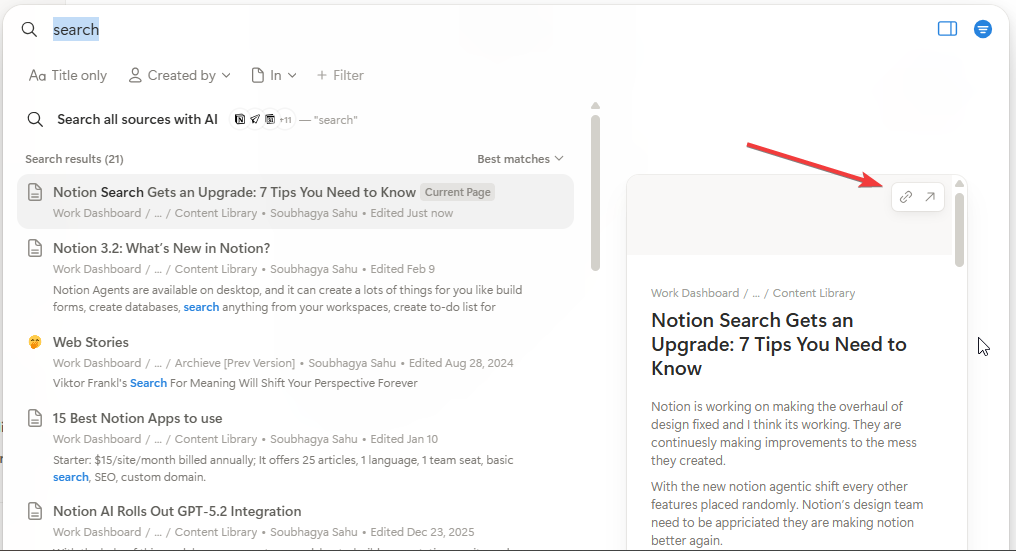
The new search option preview design also has two useful features, such as copy link and open page. With the preview, you can go to see the page’s content without going to it, and you can also copy the link of the page. This is also a very useful feature.
Final Thoughts
Notion is fixing the design of the product. The overhaul they created, now they are cleaning or organizing it.
The new search option is very useful compared to the older ones. You can give it a try yourself. If you don’t have a Notion account, you can create one using this link.
